
How-To
Welcome to the documentation for Microsoft's Self-Service Password Reset. This guide will help you get started quickly.
*NOTE* If you haven't configured a valid MFA for your account, start here: Initial Setup
Using the website passwordreset.microsoftonline.com you'll be able to unlock your account as well as reset your password.
To do this:
-
Go to passwordreset.microsoftonline.com
- Follow the prompts
- Enter your email address
- Enter the characters shown in the picture
-
Choose what you want to do:
- “Forgot Password” to reset your password
- “I know my password, but still can’t sign in” to unlock your account
- Use a valid, previously configured method of Multi-Factor Authentication to confirm your identity
- Await validation — you're done!
++If you are locked out or need a password reset without setting up a valid MFA, please email Service Desk.
See instructions on the left for valid MFA options and how to set them up to use with SSPR
Multi-Factor Authentication Setup
- Log in to https://myaccount.microsoft.com
- A prompt will appear stating “Let’s keep your account secure”
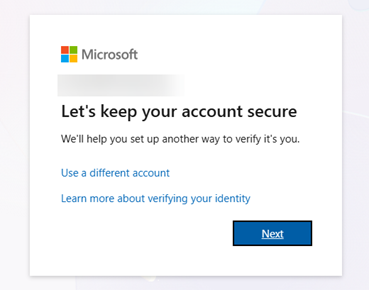
- Click “Next”
- The next page will recommend installing Microsoft Authenticator, but you can choose Hardware Token (if one has been supplied to you), Phone (text or call), and/or Email.
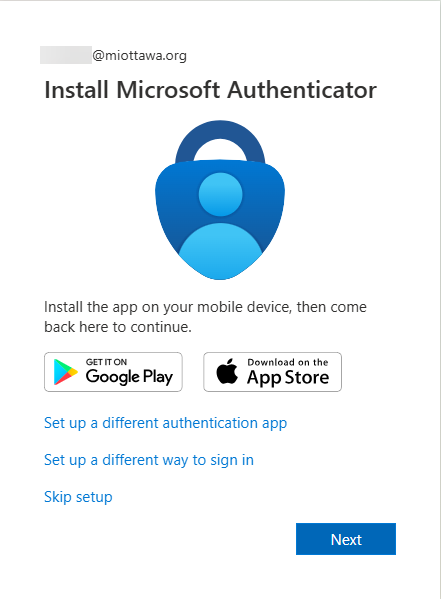
- If you would like to set up Authenticator on your iOS or Android device, click “Next” and follow the setup process to complete.
- If not, click “Set up a different way to sign in” and continue to the next step.
- After clicking “Set up a different way to sign in”, you’ll be prompted to choose between:
- Microsoft Authenticator
- Hardware Token
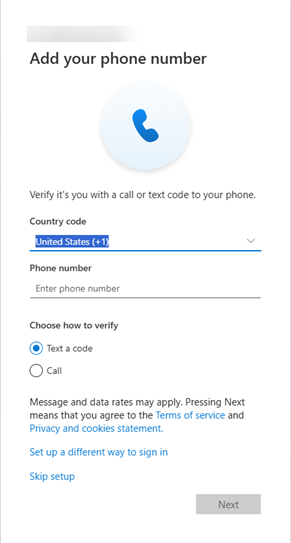
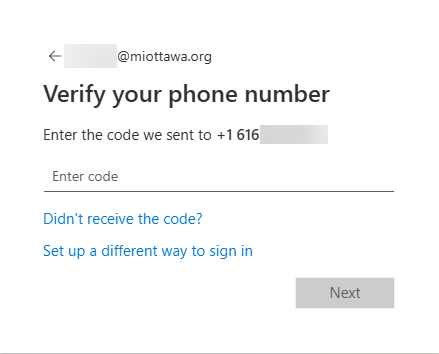
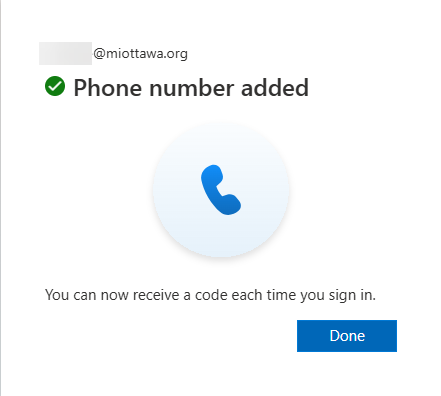
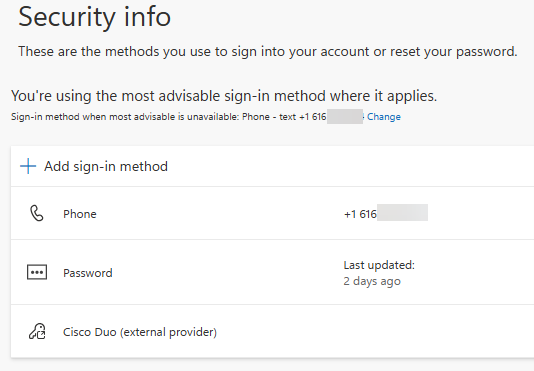
- Phone
Valid MFA Methods
Authenticator Verification
Use an authenticator app like Microsoft Authenticator or Google Authenticator to verify your identity.
This application can be installed on your county-issued phone (if available) or your personal device.
-
From the initial prompt, click ‘Next’
-
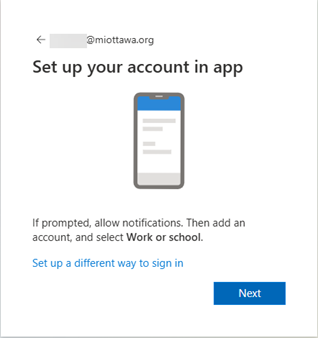
On the next screen, the following message appears. Click ‘Next’ to advance.
-
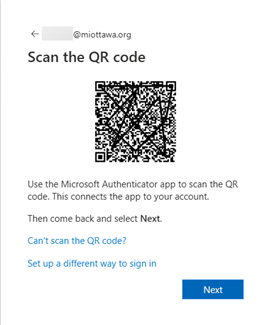
A QR code will appear that you’ll scan with your authenticator app
-
On your phone, scan this code and walk through the setup as follows:
-
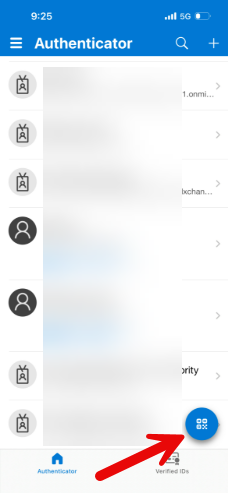
Click the QR code icon
-
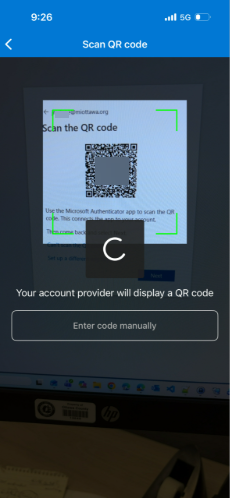
Scan the code on the computer
-
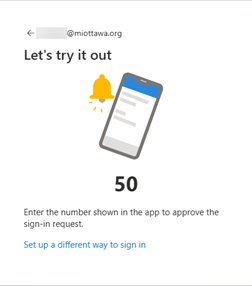
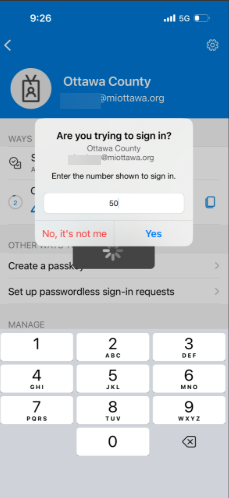
Once scanned, a window will appear on the computer providing a code
-
Enter the code and click “Yes” on your phone
-
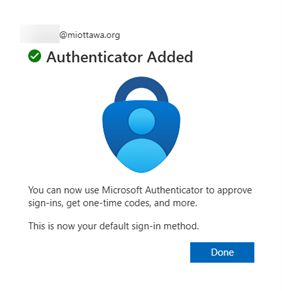
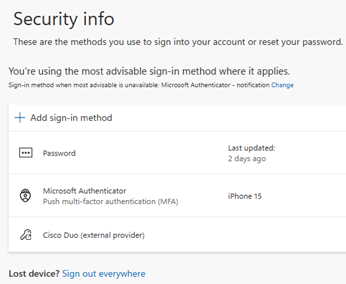
Once confirmed, the app is added to your account
-
Click the QR code icon
Password Requirements